


Step-By-Step Guide: Identifying Spam Leads From ThomasNet in GA4
This guide provides a detailed, step-by-step process for creating a custom Exploration report in Google Analytics 4 (GA4).
The specific purpose of this report is to help users identify potential spam leads originating from ThomasNet traffic.
This is achieved by systematically configuring the report to filter data down to the specific events, like e.g. “contact_thank_you” and sessions where the source/medium contains “thomasnet”, while also breaking down the event count by location (city/region), date, and hour to facilitate closer inspection for unusual patterns indicative of spam.
1. Accessing and Creating a New Exploration Report
The Explore section in GA4 is where you build custom reports for advanced analysis.
Step 1.1: Navigate to the Explore Tab
- Log into your Google Analytics 4 property.
- In the left-hand navigation menu, click on Explore (the compass icon).
- Click the + Blank template to start a new report from scratch, or choose Free-form if available.
Step 1.2: Name and Configure the Tab
In the Variables column on the left, give your Exploration a descriptive name, such as: Event tracking – date, city, region.
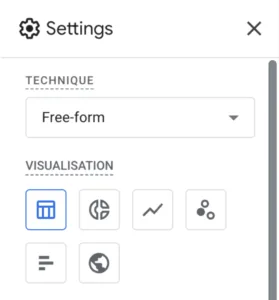
Ensure your Technique is set to Free form in the Tab Settings column.
2. Importing Dimensions and Metrics
Dimensions are the descriptive attributes (like City or Event Name), and Metrics are the quantitative data (like Event Count). You must first import them into the Variables column before you can use them.
Step 2.1: Import Required Dimensions
- In the Variables column, next to Dimensions, click the + icon
- Search for and select the following dimensions. Click Import when finished:
- Event name
- Session source / medium (be sure to select the correct one as there are multiple source/medium)
- City (or Town/City)
- Region
- Date
- Hour (this will give you the hour of the day the event occurred)
Step 2.2: Import Required Metrics
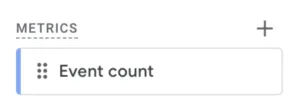
- In the Variables column, next to Metrics, click the + icon
- Search for and select the following metric. Click Import when finished:
- Event count
3. Building the Report and Adding Dimensions
Now, you will drag the imported items from the Variables column into the Tab Settings column to build your report table.
Step 3.1: Set up Rows and Columns
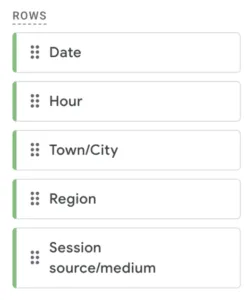
- In the Variables column, drag the following dimensions to the Rows box under Tab Settings to create the report breakdown:
- Town/City
- Region
- Date
- Hour
- Session source/medium
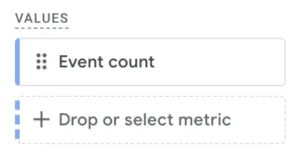
2. In the Variables column, drag the event count metrics to the Values box under Tab Settings.
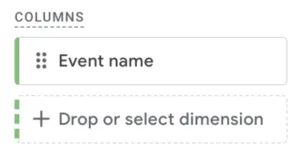
3. In the Variables column, drag the event name metrics to the Columns box under Tab Settings.
Your report will now display the number of events and users broken down by city, region, date, and hour, but for all events and all traffic sources.
4. Applying Filters for Specific Event and Source
This step focuses the report specifically on the “contact_thank_you” event and the “thomasnet” source/medium traffic.
Step 4.1: Filter by Event Name
- In the Tab Settings column, find the Filters box at the bottom.
- Drag the Event name dimension from the Variables column into the Filters box.
- Configure the filter:
- Select dimension: Event name
- Match type: Exactly matches
- Expression: contact_thank_you
- Click Apply. This ensures the report only shows data for this specific event.
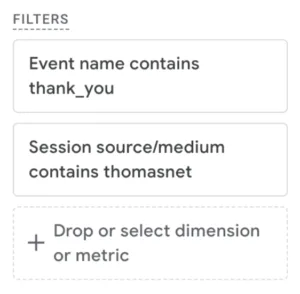
Note: “contact_thank_you” is the event name in our example – identify the actual event name you use in GA4 to track the certain events that you are building the report around. If you want to include multiple event names, you can use match type “contains” and use expression “thank_you”. This will include any event that contains “thank_you”.
Step 4.2: Filter by Session Source / Medium
- In the Tab Settings column, drag the Session source / medium dimension from the Variables column into the Filters box.
- Configure the filter:
- Select dimension: Session source / medium
- Match type: Contains
- Expression: thomasnet
- Click Apply. This now restricts the data to only include sessions where the traffic source/medium contains “thomasnet”.
This step focuses the report specifically on the “contact_thank_you” event and the “thomasnet” source/medium traffic.
Step 4.1: Filter by Event Name
- In the Tab Settings column, find the Filters box at the bottom.
- Drag the Event name dimension from the Variables column into the Filters box.
- Configure the filter:
- Select dimension: Event name
- Match type: Exactly matches
- Expression: contact_thank_you
- Click Apply. This ensures the report only shows data for this specific event.
Note: “contact_thank_you” is the event name in our example – identify the actual event name you use in GA4 to track the certain events that you are building the report around. If you want to include multiple event names, you can use match type “contains” and use expression “thank_you”. This will include any event that contains “thank_you”.
Step 4.2: Filter by Session Source / Medium
- In the Tab Settings column, drag the Session source / medium dimension from the Variables column into the Filters box.
- Configure the filter:
- Select dimension: Session source / medium
- Match type: Contains
- Expression: thomasnet
- Click Apply. This now restricts the data to only include sessions where the traffic source/medium contains “thomasnet”.
This guide is also available as PDF: How to get detailed exploration report in GA4
Trouble seeing what you want in GA4?
We will be happy to help you with these GA4 exploration reports to find detailed data. We help companies identify valuable information and untapped potential on a daily basis. We are happy to help your company too!
Click on a star to rate this post!
View Success Stories
See how we’ve helped other clients reach their goals.
Challenge: Marsh Electronics, an electronic components distributor, needed a new website to showcase their value-added services and improve product search across all devices.
Robotics Automation Company Diversifies Client Base
Challenge: Diversify their customer base and generating quality leads in new, growing vertical markets.
Challenge: Generate more sales leads and revenue for their stock and custom fastener solutions.

Heat Treating Company Upgrades Website To Help Solve Hiring Challenges
Challenge: ThermTech, a commercial heat-treating company, needed help recruiting staff to meet customer demand and promoting their world-class services.